

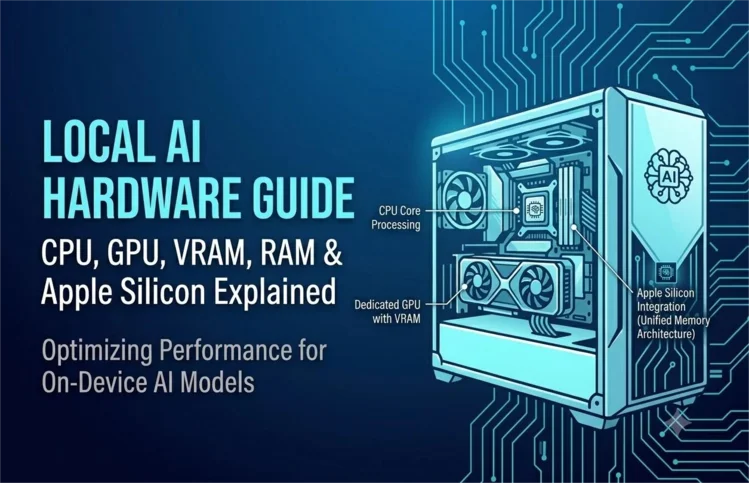
Choosing the right hardware for local AI can feel overwhelming between GPUs, VRAM, RAM and Apple Silicon, it’s not always obvious what actually determines whether a model runs smoothly or grinds to a halt. Running large language models places unique demands on your system and understanding them before you buy or before you try running a model on what you already own can save you money and frustration.
This guide breaks down exactly what each component contributes to local AI performance. We’ll explain why VRAM is often the single most important factor for GPU based inference, how much RAM you realistically need depending on model size and when CPU only setups are viable versus painfully slow.
We’ll also dig into Apple Silicon’s unified memory architecture, which has made Macs an increasingly popular choice for running models locally thanks to its unique approach to sharing memory between CPU and GPU.
Whether you’re working with an existing gaming PC, considering a dedicated build or wondering if your MacBook can handle the workload, you’ll walk away understanding exactly what hardware matters, why it matters and how to prioritize your budget. No more guessing which spec sheet numbers are marketing fluff versus genuinely important.
Running AI Locally Starts with the Right Hardware
You don’t need an expensive workstation to run AI locally. Many modern AI models work well on mid-range laptops and desktop computers. The key is understanding which hardware components affect performance and how they work together.
When people first explore local AI, they often focus on the AI model. In reality, your hardware has an even bigger impact on the experience. It determines which models you can run, how quickly they respond and whether tasks such as document analysis or coding feel smooth or frustrating.
Before downloading an AI model, take a few minutes to understand your computer’s capabilities. A well balanced system often performs better than simply choosing the largest available model.
How Local AI Uses Your Computer
Unlike cloud AI services that process requests on remote servers, local AI performs all calculations on your own device. Every prompt you enter is handled by your computer’s processor and memory.
The process looks like this:
Your Prompt
│
▼
AI Model Loads
│
▼
CPU or GPU Processes Tokens
│
▼
RAM & VRAM Store Working Data
│
▼
AI Generates a Response
Each component plays a different role:

Think of these components as a team. If one part becomes a bottleneck, the entire system slows down. For example, a powerful GPU cannot deliver its best performance if there isn’t enough VRAM to hold the AI model.
Why Hardware Matters for Local AI
Every AI model requires computing power to generate responses. Larger models contain more parameters, process more data and consume more memory. As model size increases, hardware requirements also increase.
CPU vs GPU for Local AI: Which One Actually Matters?
If you’re trying to run AI models on your own machine, three things really determine how well it’ll go: how fast your processor can crunch through inference, how much memory you have to load the model in the first place and whether you’ve got hardware that’s actually built for this kind of workload (GPUs tend to blow CPUs out of the water here).
But more expensive isn’t automatically better. A smaller model that’s well matched to your hardware will often run circles around a bigger one that’s straining your system past what it can comfortably handle.
So do you need a beefy GPU or will your CPU get the job done?
Honestly, it depends mostly on which models you’re trying to run and what you’re using them for. There’s no one size fits all answer here.
The CPU and GPU are both critical pieces of your setup, but they’re not doing the same job. Your CPU is the general purpose brain of the machine; it runs your OS, handles your everyday applications and manages traffic between all your other hardware. It’s a jack of all trades, not a specialist.
When running local AI, the CPU:
- Loads the AI model into memory.
- Manages background processes.
- Handles operating system tasks.
- Performs inference if no compatible GPU is available.
Small AI models can run entirely on a CPU. For example, lightweight models such as Phi-3 or smaller Gemma variants work well on modern multicore processors.
However, CPU only inference is usually slower than GPU acceleration, especially when working with larger language models or long conversations.
CPU Advantages
- No dedicated graphics card required.
- Lower power consumption.
- Suitable for lightweight AI tasks.
- Available in every modern computer.
CPU Limitations
- Slower inference speeds.
- Limited performance with large language models.
- Longer response times during complex reasoning.
For casual users or anyone exploring local AI for the first time, a capable CPU is often enough. As your workload grows, a dedicated GPU becomes much more valuable.
What Does the GPU Do?
A GPU works completely differently from a CPU. Instead of tackling tasks one after another, it’s built to fire off thousands of calculations simultaneously. That’s exactly why it’s such a good match for AI inference generating a single response from a language model involves millions of math operations and a GPU can chew through them in parallel instead of standing in line.
Running AI on a GPU typically provides:
- Faster response generation.
- Better handling of larger models.
- Improved multitasking.
- Smoother document analysis and coding tasks.
Most Windows and Linux users rely on NVIDIA GPUs, which support CUDA, a platform designed to accelerate AI workloads.
Apple Silicon devices achieve similar acceleration through Metal, Apple’s graphics framework.
CPU vs GPU Comparison

Recommendation: If you plan to use AI every day for writing, coding, research or document analysis, a dedicated GPU offers the best experience. If you’re only experimenting with smaller models, a modern CPU is a practical starting point.
Understanding VRAM and System RAM
Many beginners think VRAM and System RAM are the same. They are not.
Although both store data temporarily, they serve different purposes.
What Is VRAM?
VRAM (video RAM) is the memory that lives directly on your graphics card. When you run a model on a GPU, that model has to fit into VRAM first, no VRAM, no processing, at least not efficiently. Basically, VRAM is the ceiling on how big a model your GPU can comfortably handle. Bigger model, more VRAM needed; there’s no way around that relationship.
What Is System RAM?
System RAM is the main memory used by your operating system and applications.
It stores:
- The operating system.
- Background programs.
- Web browsers.
- AI runners.
- Temporary data used during inference.
Even if your GPU has enough VRAM, limited System RAM can still reduce overall performance because the operating system and AI software compete for memory.
VRAM vs System RAM

For most users, VRAM is usually the limiting factor when running larger AI models.
Apple Silicon and Unified Memory
Apple Silicon computers work differently from most Windows and Linux systems.
Instead of using separate pools of memory for the CPU and GPU, Apple uses Unified Memory.
This means the CPU and GPU share the same memory, reducing data transfers and improving efficiency.
Advantages of Unified Memory
- Faster communication between CPU and GPU.
- Better memory efficiency.
- Excellent performance per watt.
- Quiet and power efficient laptops.
Because of this design, many MacBook models perform surprisingly well with local AI despite having less dedicated graphics memory than comparable Windows systems.
However, Unified Memory is shared across the entire system. Running multiple applications at the same time reduces the memory available for AI workloads.
Choosing the Right Hardware for Local AI Models
What hardware you actually need comes down to which model you’re planning to run. More parameters means more memory and more processing power required, full stop. So rather than grabbing the biggest, most capable looking model you can find, it’s smarter to pick one that actually fits your machine. Generally speaking, smaller models respond faster and are easier on your memory, while larger ones reason better but demand hardware that can keep up.
The table below gives a practical starting point.
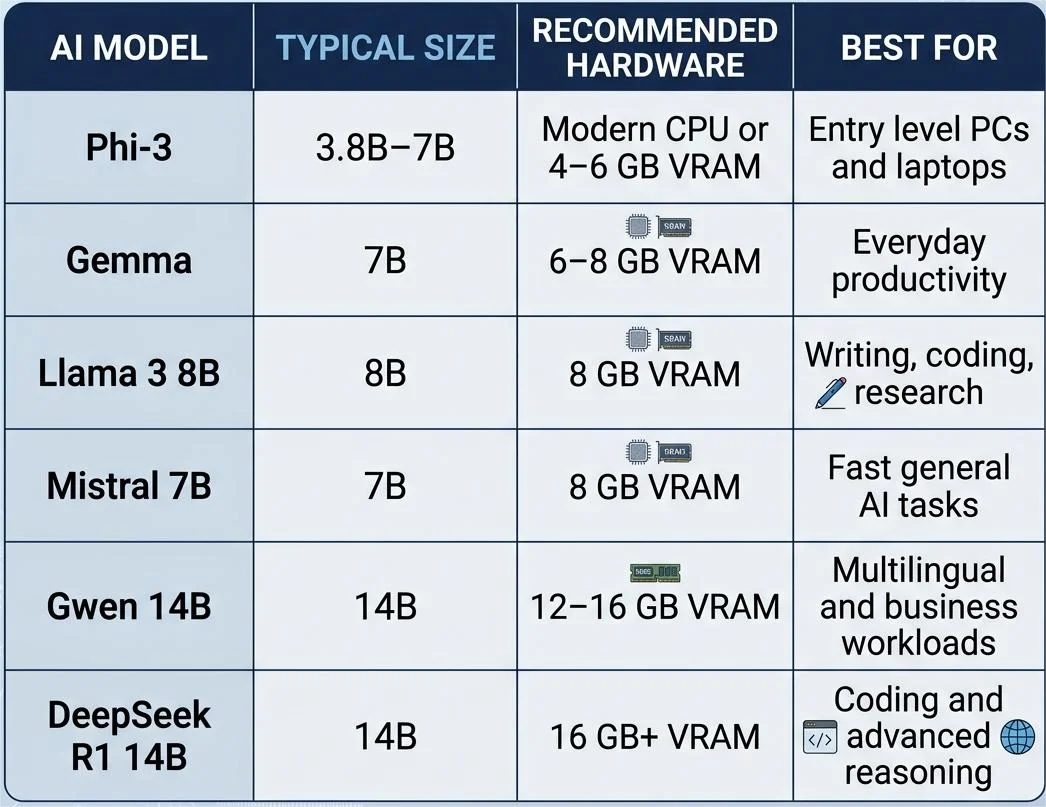
Tip: If you’re buying your first AI computer, aim for 8–12 GB of VRAM. This range supports many popular open-source models while keeping costs reasonable.
CUDA vs Metal: How Your Hardware Accelerates AI
AI models rely on hardware acceleration to generate responses quickly. The technology used depends on your operating system and hardware.
What Is CUDA?
CUDA is NVIDIA’s computing platform for GPUs. It allows AI software to use the graphics card for inference instead of relying only on the CPU.
Benefits of CUDA include:
- Faster AI inference
- Better support across AI tools
- Wide compatibility with open-source projects
- Strong performance for medium and large models
Most Windows and Linux users running local AI benefit from NVIDIA GPUs because CUDA is supported by nearly every major AI framework.
What Is Metal?
Metal is Apple’s graphics and compute framework.
Instead of CUDA, Apple Silicon Macs use Metal to accelerate AI workloads. Combined with Unified Memory, Metal enables MacBooks and Mac desktops to run many AI models efficiently without a dedicated NVIDIA GPU.
This makes Apple Silicon an excellent choice for users who want a portable and power efficient local AI system.

Neither technology is universally better. The right choice depends on the hardware you already own or plan to buy.
Laptop vs Desktop for Local AI
Many people wonder whether a laptop is powerful enough for local AI.
The answer depends on your workload.
Laptop Advantages
- Easy to carry
- Lower power consumption
- Ideal for students and remote work
- Apple Silicon laptops offer excellent efficiency
Laptop Limitations
- Limited GPU upgrade options
- Less cooling under heavy workloads
- Lower maximum VRAM than many desktop GPUs
Desktop Advantages
- More powerful GPUs
- Better cooling
- Easier upgrades
- Higher performance for demanding AI workloads
Desktop Limitations
- Less portable
- Requires more space
- Higher power consumption
For most beginners, a modern laptop is enough. If you plan to run larger models, work with multiple AI applications or build a dedicated AI workstation, a desktop offers more flexibility.
Choosing hardware doesn’t have to be complicated. Start with a system that matches your workload rather than chasing the most expensive components.

Remember that balance matters more than buying the biggest GPU. A system with enough VRAM, sufficient RAM and a capable CPU usually delivers a smoother experience than one oversized component paired with weaker supporting hardware.
Common Hardware Mistakes to Avoid
Many first time users spend more money than necessary because they misunderstand AI hardware requirements.
Avoid these common mistakes:
- Choosing the largest AI model first. Start with a model that fits your hardware instead of the biggest available model.
- Confusing VRAM with System RAM. Extra RAM cannot replace GPU memory when running larger models.
- Ignoring GPU acceleration. A supported GPU significantly improves inference speed.
- Buying hardware without checking compatibility. Make sure your operating system and GPU support the AI software you plan to use.
- Thinking about expensive hardware always means better results. A well matched system often performs better than an overpowered but poorly balanced setup.
Hardware Buying Checklist for Running AI Locally
Before you invest in new hardware or download your first AI model, review this checklist. It will help you choose a system that matches your workload and budget.

If you’re buying a new computer mainly for AI, prioritize a balanced system instead of spending your entire budget on one component. A capable CPU, enough RAM and sufficient VRAM work better together than a single high-end GPU paired with limited memory.
Which Hardware Setup Is Right for You?
The right setup depends on your experience level and the type of work you plan to do.
Start Here
│
Do you already own a computer?
│ │
Yes No
│ │
Check CPU, RAM & VRAM Choose your budget
│ │
Enough for your AI model? │
│ │ │
Yes No ▼
│ │ Buy balanced hardware
▼ ▼
Start with a Upgrade GPU,
compatible model RAM or storage
Quick recommendations:
- Students and beginners: A modern laptop with 16 GB RAM and an entry level GPU is enough for learning and everyday AI tasks.
- Content creators: A mid range GPU with 8–12 GB VRAM provides a smooth experience for writing, summarizing and research.
- Developers: Choose a multi core CPU, 32 GB RAM and a dedicated NVIDIA GPU if you plan to run AI tools alongside development environments.
- Business users: Invest in additional RAM and storage if multiple users or large document collections are part of your workflow.
How to Get Better Performance Without Buying New Hardware
Many users assume they need a new computer when AI feels slow. In many cases, a few simple changes improve performance.
Try these practical tips:
- Close unnecessary applications before running AI models.
- Keep enough free disk space for temporary files and model storage.
- Update GPU drivers regularly to improve compatibility and stability.
- Monitor CPU, GPU and memory usage while running AI tasks.
- Start with smaller models before moving to larger ones.
These adjustments often improve responsiveness without increasing your budget.
Note: Advanced performance tuning, memory optimization and choosing the right quantization level are covered in Cluster 4: How to Optimize Local AI Performance.
Key Takeaways
- Your hardware determines which AI models you can run and how quickly they respond.
- A GPU with enough VRAM has the greatest impact on local AI performance for medium and large models.
- System RAM supports your operating system and applications, while VRAM stores the AI model during inference.
- Apple Silicon uses Unified Memory, allowing the CPU and GPU to share memory efficiently.
- CUDA accelerates AI workloads on NVIDIA GPUs, while Metal provides similar acceleration on Apple Silicon devices.
- A balanced system is more important than buying the most expensive hardware available.
- Match your hardware to your workload instead of choosing components based only on model size.
FAQs
What hardware is most important for running AI locally?
The GPU and its available VRAM usually have the biggest impact on performance. They determine how efficiently your system can run medium and large AI models.
Can I run AI models without a dedicated GPU?
Yes. Smaller AI models can run on a modern CPU, although response times are generally slower than GPU accelerated inference.
How much RAM do I need for local AI?
For most users, 16 GB of RAM is a practical starting point. If you regularly run multiple applications or larger AI workloads, 32 GB provides a more comfortable experience.
How much VRAM is enough?
It depends on the model you choose. Many popular open source models work well with 8–12 GB of VRAM, while larger models often require 16 GB or more.
Is Apple Silicon good for local AI?
Yes. Apple Silicon systems perform well because Unified Memory and Metal allow efficient AI acceleration while maintaining low power consumption.
Should I buy a laptop or a desktop?
A laptop is ideal if portability matters. A desktop is the better choice if you plan to upgrade components or run larger AI models over time.
Do I need the most expensive GPU?
No. Buying hardware that matches your workload usually provides better value than purchasing the highest end GPU available.
Conclusion
Choosing the right hardware is the first step toward a smooth local AI experience. Instead of focusing on the biggest AI model or the most expensive graphics card, build a system that matches your goals and workload.
A balanced combination of CPU, GPU, VRAM, System RAM and Unified Memory provides the foundation for reliable AI performance. Once your hardware is in place, you can confidently move on to selecting AI models, installing local AI software and optimizing your workflow.
Understanding your hardware today will help you make smarter decisions as open source AI models continue to improve and become more accessible.

Zafar Iqbal is a content and blog writer specializing in technology, artificial intelligence, software and digital trends. He holds a Master’s degree in English Literature from the University of the Punjab, Lahore, which shapes his approach to clear, well-structured writing. Zafar focuses on breaking down complex technical subjects into content that is easy to follow without sacrificing accuracy or depth. His work draws on careful research, attention to detail and a practical understanding of SEO content strategy and keyword research ensuring articles are both informative and easy to find. He is particularly interested in how emerging technologies affect everyday users and works to present that information in a way that is useful rather than overwhelming. His writing aims to give readers a clear, reliable understanding of the topics that shape modern technology.
Leave a Reply