
Running AI Locally Starts with the Right Software
Once you’ve chosen your hardware and downloaded an AI model, the next step is selecting software that can load and run it. This software is often called an AI runner because it manages the model and lets you interact with it through a desktop application, command line or web interface.
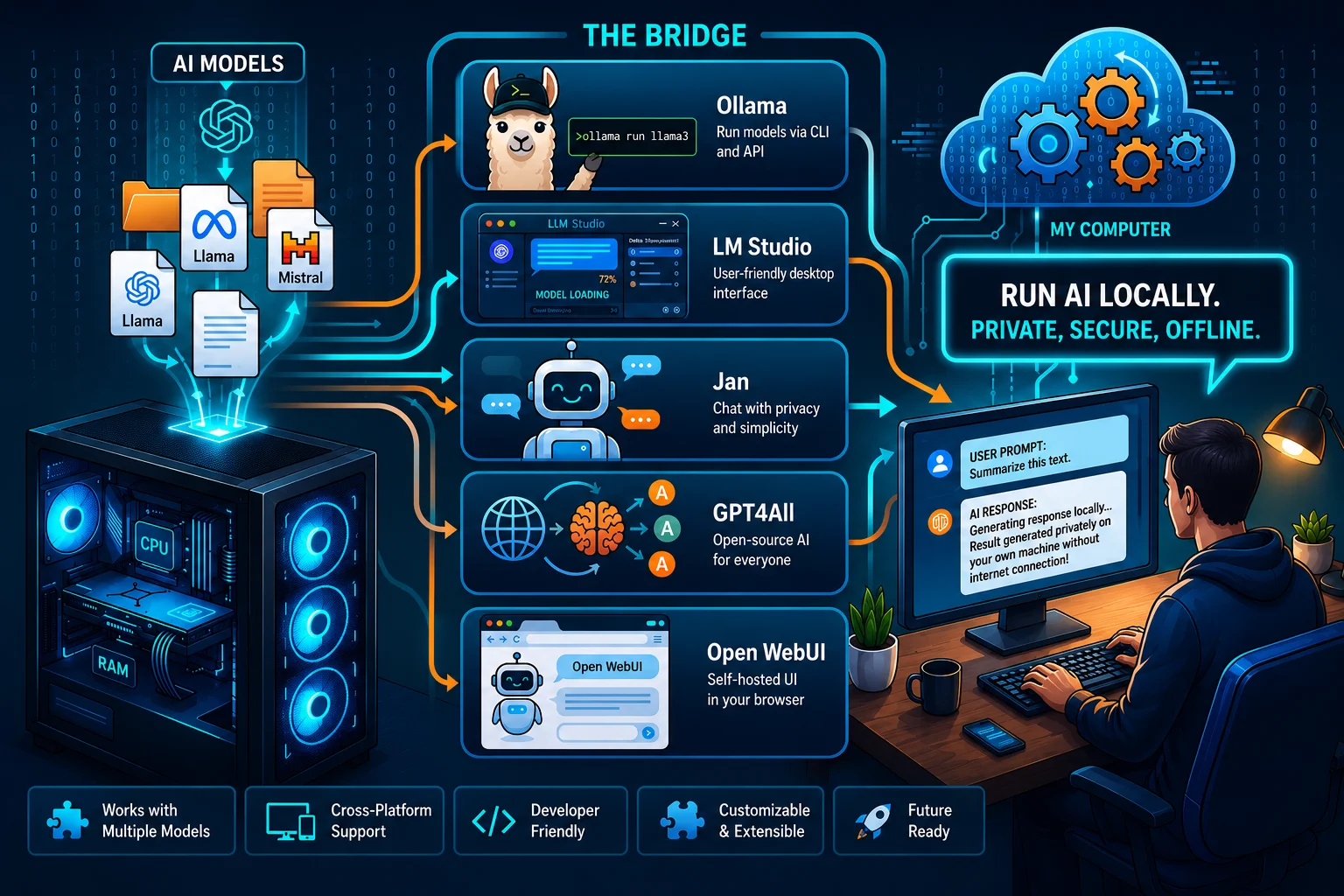
An model runner acts as the bridge between your computer and the AI model. It loads the model into memory, processes your prompts, generates responses and may also provide features such as model management, chat history or API access.
Popular tools such as Ollama, LM Studio, Jan, GPT4All, and Open WebUI make it easier to run local AI models without relying entirely on cloud-based services. Depending on your experience and workflow, you can use a simple desktop interface, command-line tools or a browser-based interface.
Today, several free and open-source AI runners make local AI easy to use even if you have no programming experience.
How the Local AI Software Stack Works
Every local AI setup follows a similar workflow.
Download AI Model
(Hugging Face)
│
▼
AI Runner (Ollama, LM Studio)
│
▼
Load Model into Memory
│
▼
Enter Your Prompt
│
▼
AI Generates Response
The software does not replace the AI model. Instead, it provides the environment needed to run the model efficiently and interact with it.
Choosing the Right AI Runner
The best local runner depends on your experience and how you plan to use these tools.
Some applications focus on simplicity, while others are designed for developers who need API access and automation.
The table below compares the most popular options.

Each tool can run many of the same open-source AI models, but the user experience differs.
LM Studio: The Easiest Way to Get Started
LM Studio is one of the most beginner-friendly applications for running AI locally. It provides a graphical interface that lets you search for compatible models, download them and start chatting without using the command line.
Why Choose LM Studio?
- Easy installation
- Simple desktop interface
- Built-in model search
- ChatGPT-style experience
- Supports many GGUF models
- Available for Windows, macOS and Linux
If you’re trying local AI for the first time, LM Studio is often the easiest place to start because it requires very little configuration.
Best for:
- Students
- Writers
- Researchers
- General users
Ollama: Built for Developers
Ollama is designed for users who want more control over their local AI environment. Instead of relying on a graphical interface, Ollama uses simple command-line commands to download and manage models.
One of its biggest advantages is the built-in Local API Server, which allows other applications to communicate with local AI models through a REST API.
Developers often use Ollama to integrate local AI into:
- Coding assistants
- Automation tools
- Desktop applications
- AI workflows
- Custom chatbots
Why Choose Ollama?
- Lightweight installation
- Fast model management
- REST API support
- Automation friendly
- Works well with development tools
Although it uses the command line, Ollama’s commands are easy to learn, making it suitable for beginners who want to expand their skills.
Best for:
- Developers
- Technical users
- Automation workflows
Jan: A Privacy-First AI Assistant
Jan is an open-source desktop application designed for people who want complete control over their AI environment.
Like LM Studio, Jan provides a clean graphical interface. Unlike many cloud-based AI services, Jan keeps your conversations and models on your own computer.
Key Features
- Fully open source
- Privacy-focused design
- Simple desktop interface
- Local model management
- Cross-platform support
Jan is a good choice for users who prefer open-source software and want a desktop experience without sending data to external servers.
Best for:
- Privacy-conscious users
- Businesses handling sensitive information
- Open-source enthusiasts
GPT4All: A Simple Offline AI Experience
GPT4All was one of the earliest projects to make local AI accessible to everyday users.
It offers an easy installation process, a built-in chat interface and support for many popular open-source models.
Unlike developer-focused tools, GPT4All emphasizes simplicity.
Why People Choose GPT4All
- Beginner-friendly interface
- Quick installation
- Offline operation
- Free to use
- Cross-platform compatibility
For users who want to experiment with local AI without learning technical commands, GPT4All remains a practical option.
Downloading AI Models
Most local AI runners do not create AI models. Instead, they load models that you download from trusted repositories.
The most widely used source is Hugging Face, which hosts thousands of open-source language models.
Before downloading a model, check:
- Supported file format
- Model size
- Storage requirements
- License
- Compatibility with your chosen AI runner
Many modern runners can import models directly or guide you through the download process, making setup much easier than in the past.
Operating System Compatibility
Most popular AI runners support the three major desktop operating systems.

Although installation steps vary slightly, the overall workflow is similar across platforms.
If you plan to use AI offline, you only need an internet connection to download the software and models. After everything is installed, you can continue using local AI without staying connected to the internet.
Storage Requirements
Besides memory, local AI also requires adequate storage space.
Model files vary in size depending on their parameter count and quantization level. As you experiment with different models, storage usage increases quickly.

An SSD reduces loading times and improves the overall responsiveness of local applications. If you plan to keep several models on your computer, leaving at least 100–200 GB of free storage is a practical starting point.
Open WebUI: A ChatGPT-Style Interface for Local AI
Some users prefer interacting with AI through a web browser instead of a desktop application or command line. Open WebUI provides exactly that experience.
Open WebUI is an open-source web interface that connects to local AI runners such as Ollama. It lets you chat with your local AI models through a clean browser-based interface that feels familiar to anyone who has used ChatGPT.
Why Use Open WebUI?
- ChatGPT-style interface
- Multi-user support
- Conversation history
- Document uploads
- Easy model switching
- Works with local AI models
Open WebUI is popular with developers, businesses and home users who want a polished interface without relying on cloud services.
Docker: Simplifying Local AI Deployment
Many AI tools support Docker, a platform that packages applications and their dependencies into portable containers.
Instead of installing every component manually, Docker lets you launch a complete AI environment with minimal configuration.
Benefits of Docker
- Consistent setup across computers
- Easier software updates
- Isolated environments
- Reduced dependency conflicts
- Faster deployment
Docker is especially useful for teams, developers and businesses that need repeatable installations across multiple systems.
If you’re new to local AI, you don’t need Docker to get started. Applications like LM Studio or GPT4All are easier for beginners. Docker becomes valuable as your projects grow more complex.
llama.cpp: The Engine Behind Many Local AI Tools
Although most users interact with graphical applications such as LM Studio or Jan, many of these tools rely on llama.cpp behind the scenes.
llama.cpp is an open-source inference engine designed to run large language models efficiently on consumer hardware.
Its main advantages include:
- Efficient CPU inference
- Cross-platform compatibility
- Support for GGUF models
- Active open-source development
- Broad adoption across the local AI ecosystem
Because of its speed and flexibility, llama.cpp has become the foundation for many modern local local applications.
Using the Local API Server
One feature that separates Ollama from many desktop applications is its built-in Local API Server.
Instead of chatting only through a desktop interface, other applications can send requests directly to a locally running AI model using a REST API.
This makes it possible to integrate local AI with:
- Code editors
- Desktop applications
- Automation platforms
- Business software
- Custom chatbots
- Internal knowledge systems
For developers, the Local API Server turns a personal computer into a private AI service without depending on cloud providers.
From Download to Your First Conversation
Setting up local AI is much easier today than it was a few years ago. Most users can complete the process in a short time by following a simple workflow.
Choose an AI Runner
│
▼
Install the Software
│
▼
Download a Compatible AI Model
│
▼
Load the Model
│
▼
Start Your First Chat
For most beginners, the process is straightforward:
- Install an AI runner such as LM Studio, Jan or GPT4All.
- Download a compatible model from Hugging Face or through the software’s built-in catalog.
- Load the model into the application.
- Enter your first prompt.
- Adjust settings only after you’re comfortable with the basics.
Starting with a simple setup helps you understand how local AI works before exploring advanced features.
Common Installation Mistakes
Many first-time users encounter avoidable problems during installation. Understanding these common mistakes can save time and frustration.
Downloading the Wrong Model Format
Always check that the model format is supported by your chosen model runner. Using an incompatible file often leads to loading errors.
Ignoring Available Storage
AI models can occupy several gigabytes of storage. Running out of disk space during downloads or updates is a common issue.
Skipping Software Updates
AI runners improve frequently. Keeping your software updated ensures better compatibility with newer models and bug fixes.
Installing Too Many Models
Downloading every popular model isn’t necessary. Begin with one model that matches your needs, learn how it performs and then expand your collection.
Expecting Cloud AI Features
Local AI focuses on privacy and control. Some cloud-only features may not be available, depending on the software and model you choose.
Which AI Runner Should You Choose?
The best software depends on how you plan to use local AI.
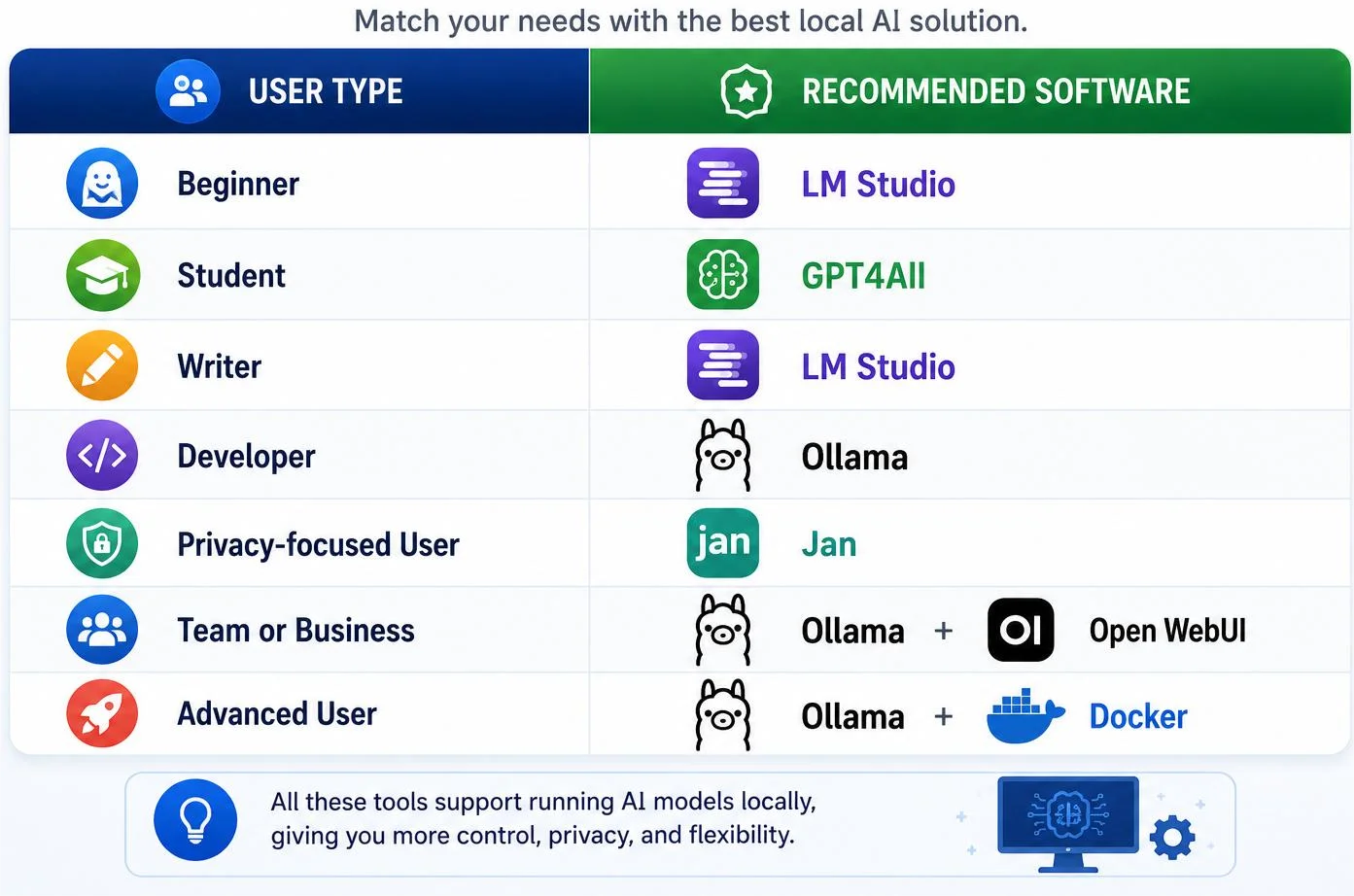
There isn’t a single “best” application. The right choice depends on your workflow, technical experience and long-term goals.
Key Takeaways
- AI runners provide the environment needed to load and use local AI models.
- LM Studio is an excellent starting point for beginners who prefer a graphical interface.
- Ollama is ideal for developers because it includes a Local API Server and supports automation.
- Jan focuses on privacy and open-source development.
- GPT4All offers a simple offline AI experience.
- Open WebUI adds a browser-based interface for chatting with local models.
- Docker simplifies deployment for advanced users and teams.
- llama.cpp powers many local tools by providing efficient model inference.
- Download AI models from trusted sources and install only what you need.
Frequently Asked Questions
Which AI runner is easiest for beginners?
LM Studio is generally the easiest option because it provides a graphical interface, built-in model discovery and a simple installation process.
Can I use local AI without an internet connection?
Yes. An internet connection is usually required only to download the software and AI models. After installation, most local tools work offline.
Where should I download AI models?
Trusted repositories such as Hugging Face provide thousands of open-source AI models for local use.
Do all AI runners support the same models?
Many support the same popular model formats, but compatibility varies. Always check the documentation before downloading a model.
Do I need Docker to run local AI?
No. Docker is optional. Most beginners can use LM Studio, GPT4All or Jan without installing Docker.
What is a Local API Server?
A Local API Server allows other applications to communicate with an AI model running on your computer through a REST API.
Which software is best for developers?
Ollama is one of the most popular choices because it supports command-line workflows, APIs and automation.
Conclusion
Choosing the right software is the final step before you begin using AI locally. Whether you prefer the simplicity of LM Studio, the flexibility of Ollama, the privacy of Jan or the browser-based experience of Open WebUI, each tool provides a reliable way to run open-source AI models on your own computer.
Start with a simple setup, learn how your chosen software works and then explore advanced features as your needs grow. Once you’re comfortable running models locally, the next step is improving speed, memory usage and overall efficiency.

Zafar Iqbal is a content and blog writer specializing in technology, artificial intelligence, software and digital trends. He holds a Master’s degree in English Literature from the University of the Punjab, Lahore, which shapes his approach to clear, well-structured writing. Zafar focuses on breaking down complex technical subjects into content that is easy to follow without sacrificing accuracy or depth. His work draws on careful research, attention to detail and a practical understanding of SEO content strategy and keyword research ensuring articles are both informative and easy to find. He is particularly interested in how emerging technologies affect everyday users and works to present that information in a way that is useful rather than overwhelming. His writing aims to give readers a clear, reliable understanding of the topics that shape modern technology.
Leave a Reply